

Camera or mic not working? Start here
These resolve most device problems.- Confirm the device is selected. Click the arrow next to the camera or microphone icon in the Tella recorder and pick the right device from the list.
- Check the hardware connection. Make sure cables are seated, the device is powered on, and any hardware mute switch is off.
- Close other apps. Zoom, Meet, OBS, and Photo Booth can hold onto your camera or mic so Tella can’t access it. Quit them and try again.
- Reload or restart. Refresh the browser tab (web app) or quit and reopen the Mac or Windows app, then unplug and replug the device.
Camera or mic missing from the list?
If a device doesn’t appear at all, Tella may not have permission to use it.- Web app & Chrome extension: Follow Permissions for camera, mic & screen to allow access in both Tella and your browser.
- Mac app: Follow Can’t record on Mac? Check screen, camera, and mic permissions to review macOS privacy settings.
- Windows app: Follow Can’t record on Windows? Check camera and mic permissions to review Windows privacy settings.
Microphone problems
- No sound detected: Check that the correct mic is selected, the hardware isn’t muted, and it’s connected properly. See Why do I see the ‘no sound’ warning?.
- Audio out of sync: See Audio and video are out of sync. XLR mics deliver audio ahead of your video; the Mac app can delay it with Delay audio under Settings → Recording → Microphone → Advanced Settings. See Fix audio sync for XLR microphones.
- Big noises or pops: See My video has audio issues (big noises or pops).
Camera problems
- Camera not listed: Check permissions above, then unplug and replug the camera and reopen the recorder.
- Image is flipped or rotated: Some cameras output a mirrored or portrait stream. See Insta360 Link Controller issues for an example fix.
- Want to use more than one camera: Tella records one camera at a time. See Can I record with multiple cameras? for workarounds.
Mirrorless or DSLR camera not working with Cam Link 4K?
Using a mirrorless or DSLR camera as your webcam (typically through an Elgato Cam Link 4K) gives a great image, but adds a few extra things that can go wrong. If your Cam Link camera shows a black screen, drops out, or doesn’t appear, check the following:- Use a clean HDMI output. In your camera’s menu, turn off on-screen info, overlays, and HDMI display data so only the image is sent over HDMI. Look for a setting like “HDMI info display” or “clean HDMI output.”
- Match a supported resolution and frame rate. Cam Link 4K supports specific resolutions and frame rates. Set your camera’s HDMI output to a standard mode (for example 1080p) rather than an unusual one.
- Disable auto power-off and sleep. Mirrorless and DSLR cameras often sleep after a few minutes, which kills the feed. Turn off the auto power-off / sleep timer so the camera stays awake while recording.
- One app at a time. Only one application can use the Cam Link at once. Quit any other app that might be holding the camera before recording in Tella.
- Check the full chain. A bad HDMI cable, adapter, or USB port is a common cause. Try a different cable and plug the Cam Link directly into your computer rather than through a hub.
The camera must stay set to “webcam,” “clean HDMI,” or live-view output mode. If it’s in playback or photo-review mode, no live image is sent to the Cam Link.
Inspect an external camera on macOS
If you’ve worked through the steps above and an external camera still misbehaves, a dedicated tool can show you exactly what your Mac sees from the device. Capture Inspector is a macOS app that inspects connected cameras and capture devices, including the formats, resolutions, and frame rates they report. It’s especially useful for diagnosing mirrorless/DSLR cameras paired with a Cam Link 4K, where the problem is often a resolution or format mismatch rather than Tella itself.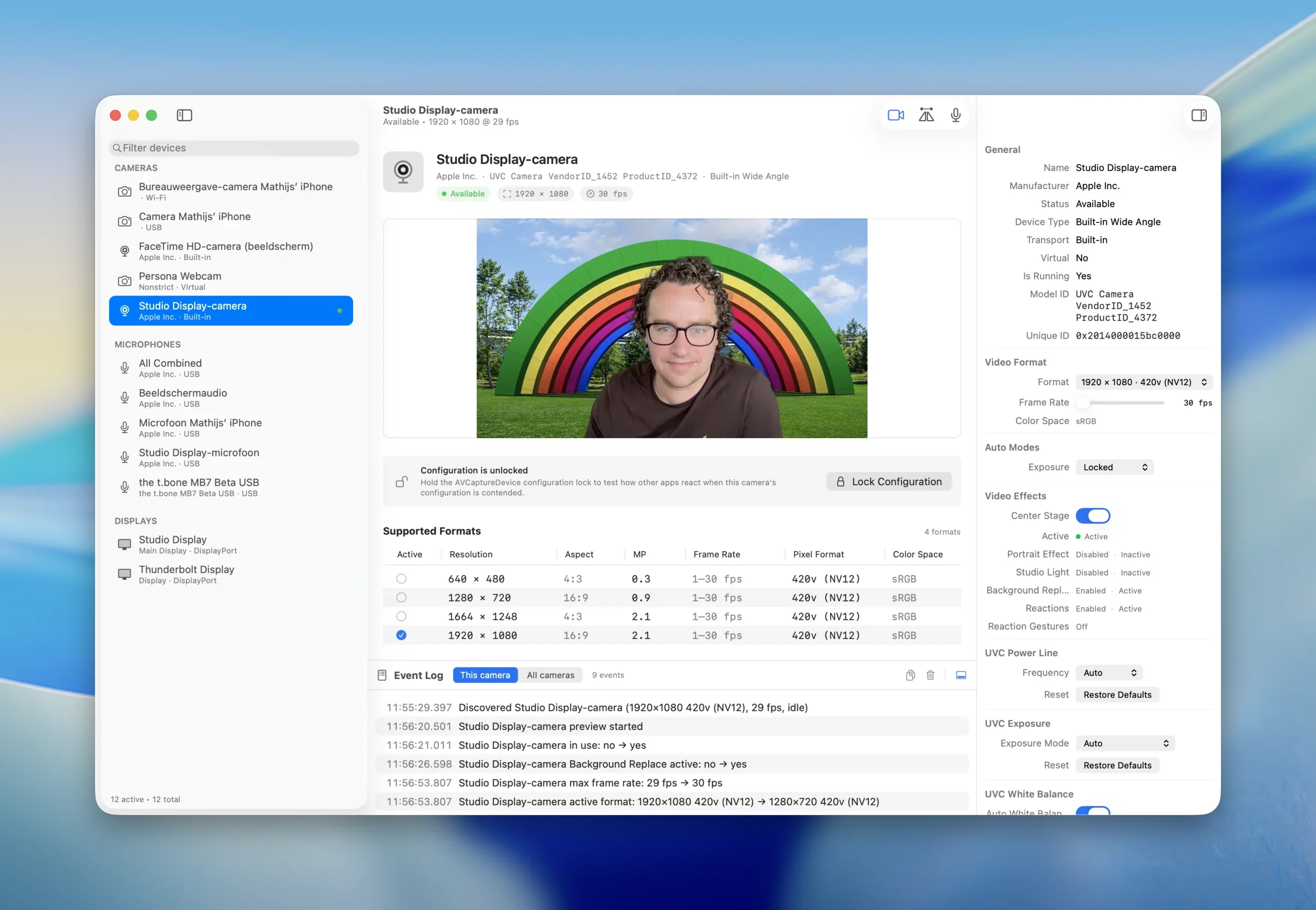
Still stuck?
If none of the above works, reach out and we’ll help.Contact support
Open a ticket from the in-app support portal with your device details and a description of what you’re seeing.