

Which videos can use Studio Voice?
You can use Studio Voice on any video that has a microphone recording:- Screen + camera
- Camera-only
- Screen-only (with microphone)
Studio Voice is also available for external video files that you upload to Tella. Just keep in mind that Studio Voice is optimized for enhancing speech and not other types of audio, e.g., music or sound effects.
Turn on Studio Voice
To enable Studio Voice, open a video in the editor, then click Audio in the left-hand toolbar. Under Studio Voice, choose Low or High from the dropdown. Tella starts generating an enhanced version of your audio. The dropdown is unavailable while your uploads are still processing.When you enable Studio Voice, you’re enabling it for the entire video. So the audio for all the clips in your video will be enhanced.
Choose a Studio Voice level
The Studio Voice dropdown offers three options:- Off — “Your original audio”: use your recording without Studio Voice enhancement.
- Low — “Works in any room”: the default enhancement level for new videos.
- High — “Most natural with a good mic”: try this when you have a good microphone and a clean recording.
How long does Studio Voice take?
Depending on the duration of your video, generating the enhanced audio can take a few minutes. While it’s generating you won’t be able to play or edit your video, but you can record or edit other videos while it generates in the background. You’ll see Enhancing audio… under the dropdown. You can still choose a different level: Tella waits for the current enhancement to finish, then generates your latest selection. If you change your mind more than once, only the latest choice is queued. Once Tella generates the enhanced audio, the editor updates and uses it. Play the video to hear the difference.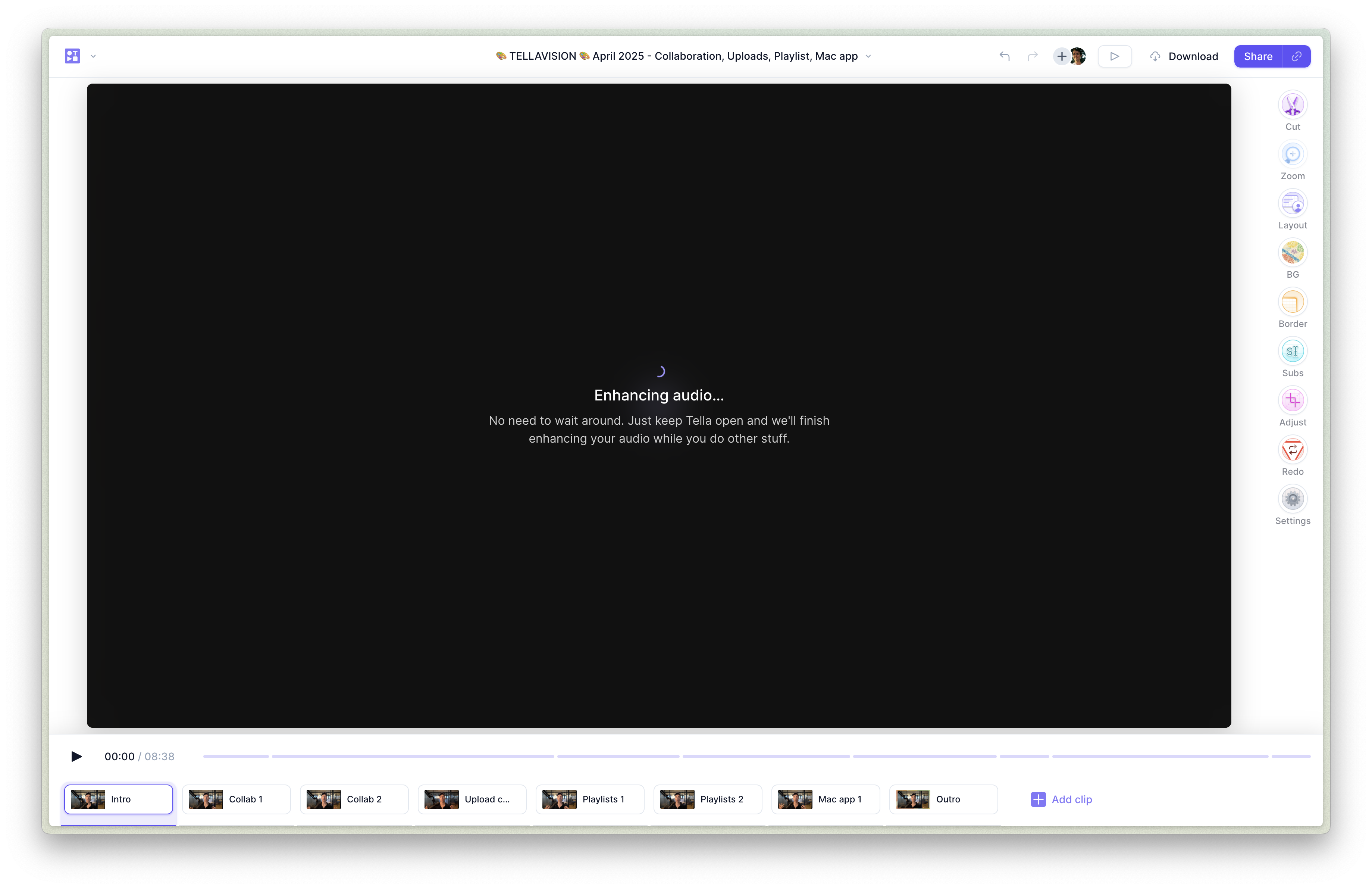
Turn off Studio Voice
Choose Off in the Studio Voice dropdown in the Audio panel to use your original audio. This takes effect immediately, even while enhancement is running, and clears any queued level change. The current enhancement still finishes in the background. Once enhancement finishes, choosing the same level again reuses its generated audio without waiting. Choosing a different level regenerates the enhancement.If the editor preview keeps playing the previous audio after you switch Studio Voice on or off, refresh the page. Your selection is saved and still applies when you share or export the video.
Turn off Studio Voice for one clip
If your video has more than one clip, you can keep Studio Voice on for the whole video but turn it off for individual clips. This is handy for clips that already sound the way you want, for example, ones with music, sound effects, or audio you’d rather leave untouched. With Studio Voice enabled, select the clip you want to change and open the Audio panel from the left-hand toolbar. Under Studio Voice you’ll see a Disable for this clip only checkbox, shown only when the video has more than one clip. Tick it and that clip plays its original audio, while the rest of your video stays enhanced. Untick it to bring the enhanced audio back.Adding clips to a video with Studio Voice
If you add new clips to a video with Studio Voice enabled, Tella automatically enhances them using the video’s enhancement engine. You need to wait for Tella to generate the enhanced audio before you can edit, share, or export.Studio Voice in downloads
Once Studio Voice finishes generating, Tella uses the enhanced audio when you share your video or download a regular video export. If you choose Raw recordings with cuts (.zip), Tella also applies Studio Voice to the microphone audio while preserving your timeline cuts. Clips where you selected Disable for this clip only keep their original audio.The Raw recordings (.zip) option downloads the original, unedited source files, so editor audio processing such as Studio Voice is not applied.